



UpgradeDrive.zip
188.37 KB

Aircraft Transmitters-AT Series
Aircraft Transmitters -T Series
Surface Transmitters
ELRS Long-range Module
Wireless Trainer System
NEW
NEW
FC for Fixed Wing
GPS
RTK Kit
12C Boards
Ultrasonic Sensor
Digital Video
Transmission Adapter Board
Flight Controller(Mission Planner)
NEW
 简体中文
简体中文 English
T8S(BT) Firmware
(Please upgrade by Windows 7,8,10,11 or XP computer, cannot upgrade by Apple MAC computer)
Attention: If you can not download the files or zip file below, please click the website below to download the files you need.
http://www.radiolink.com.cn/firmware/transmitter/T8S(BT)/
1. Firmware Upgrade Tool
Click to download the firmware upgrade Driver, only applicable to computers.
Note:
Please install the driver when using the computer parameter set APP for the first time. For the T8FB/T8S upgrade driver installation tutorial, please click the article below to view it.
If the computer is a Windows 7, 8, or XP system: https://www.radiolink.com.cn/driver_for_T8FB/T8S_firmware_upgrade_tool_installation
If the computer is a Windows 10 or 11 system: https://www.radiolink.com.cn/T8FB_and_T8S_parameter_setup_software_driver_installation_for_WIN10
WinZip(design by 360, free)
If you do not have the WinZip Tools to decompress upgrade files, please click to download and install the free WinZip Tool designed by 360.
2. Upgrade Firmwares
(1) The latest firmware
The firmware version can be checked on the parameter setup APP(SYSTEM menu) in mobile or computer(PARAMETER at the bottom right). If the wrong firmware is accidentally flashed and the system of T8S(BT) is crashed, please remove the cover and disconnect the battery and connect again. Then upgrade the firmware downloaded below.
① The current batches of T8S(BT): Long-press the power button for 1 second and release to turn it on.
If the wrong firmware is flashed and the device can't be powered on, or the LED indicators flash abnormally. Please download the V892 firmware to repair.
Click to download the latest firmware:
Attention:
① Add joystick dead zone; after upgrading, joysticks must be recalibrated; reboot after calibration is completed.
② Compatible with the parameters set up APP versions of Android mobile phone APP V11.1(or above), Apple mobile phone APP V4.2.2(or above), or computer APP V11.1(or above).
V892 Update Notes:
Improvement: Fixed the midpoint offset issue on channels 5–7 after reboot when adjusting the "SWASH RING".
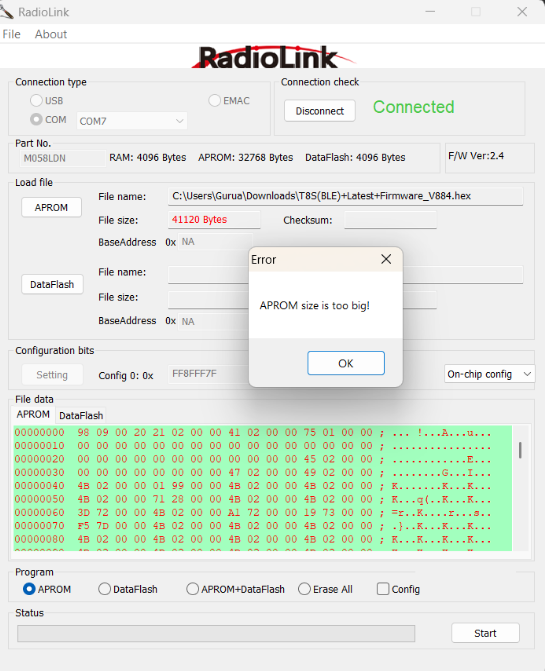
Note: If, during firmware flashing, you encounter the error "APROM size is too big!" (as shown in the figure below), it means the T8S can only flash firmware versions V856 and earlier.
T8S Firmware Versions and Corresponding App Versions | |||
Firmware Version | PC App Version | Android App Version | iOS App Version |
V856 and earlier | V4.2-V5.1 | V7.0-V9.4.4 | V4.2.0- V4.2.2 |
V884 and later | V6.0.2-V11.1 | V10.0-V11.5 | V10.0 - V11.2.1 |
Note: T8S helicopter firmware starts from version V884. | |||
https://www.radiolink.com.cn/firmware/transmitter/T8S%28BT%29/
Android and PC setup APP download addresses for different versions:
https://www.radiolink.com.cn/firmware/apk/
(2) Firmware for turning off the Trim Function
Click to download the firmware for turning off the Trim Function:
Attention: After upgrading this firmware, the Aileron, Elevator, Throttle, and Rudder trim buttons' mechanical adjustment functions will be canceled. It is designed for remote controllers that control logistics, fire fighting, and short-distance unmanned delivery vehicles or drones.
(3) Factory Default Firmware
Click to download the factory default firmware:
Attention: please use the V603 parameter setup APP if the firmware version of your transmitter is V826
② The previous batches of T8S(BT): Slightly touch the power button to turn it on.
If the wrong firmware is flashed and can’t be powered on, or the LED indicators flash abnormally. Please download the V810 firmware to repair, and no other firmware can be flashed afterwards.
Click to download the firmware: T8SBL_LatestFirmware_V810(OldVersion1s).hex
How to update the firmware of T8S?